Additional features settings
- Login Component Type
- Login Container (Classic)
- Password Reset Container (Classic)
- Password Reset Messages (Classic/JSONForm)
- Password Reset Email Message Customization (Classic/JSONForm)
- New Password Container (Classic)
- New Password Messages (Classic/JSONForm)
- New Account Container (Classic)
- New Account Messages (Classic/JSONForm)
- Change Password Events (Classic/JSONForm)
Description
Settings for configuring Password Reset and Account Creation in a Login UX.
Discussion
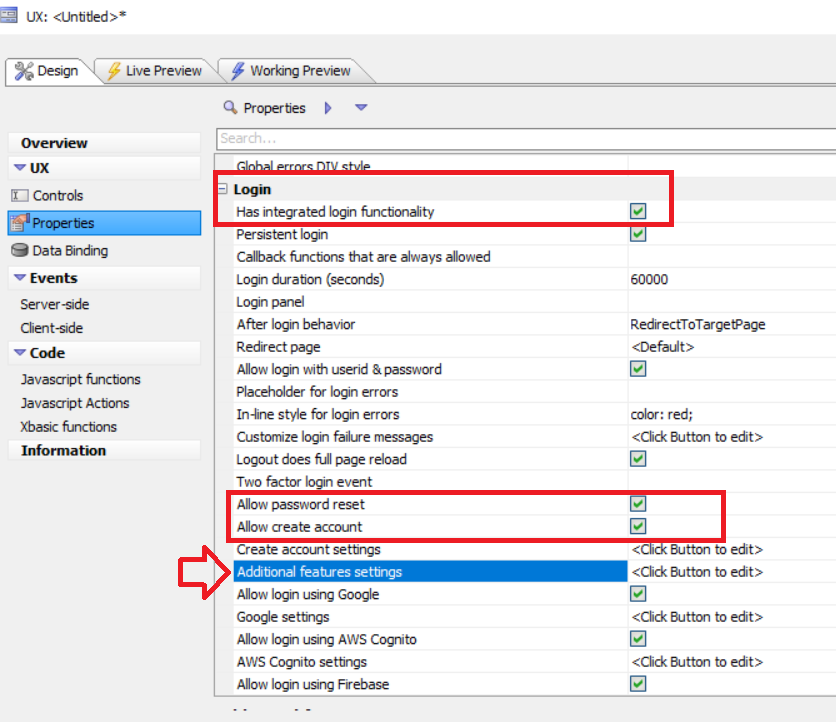
UX Properties is open to Login and Has integrated login functionality checked.
If either the Allow password reset property or the Allow create account property is checked, the Additional features settings property is shown, filtered with the dependent properties for that selection.
To see all properties, check both before entering the Additional features settings
When you click the  smart field to enter the Additional features settings
property, the following dialog is shown where you can configure various aspects of the
password reset and create account features.
smart field to enter the Additional features settings
property, the following dialog is shown where you can configure various aspects of the
password reset and create account features.
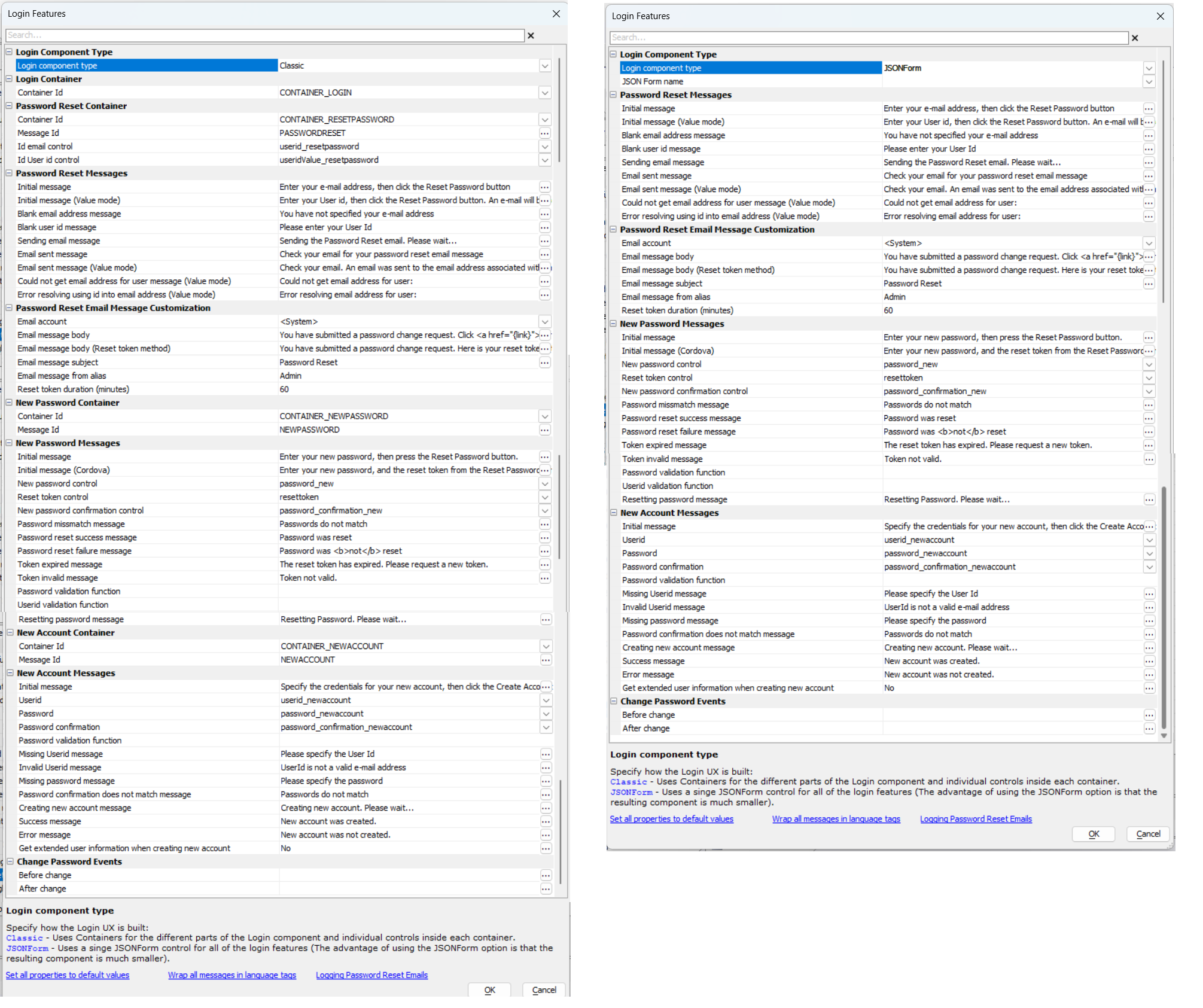
Login Component Type
The Login Component Type section defines how the Login UX is built.
- Property
- Description
- Login component type
Specifies how the Login UX is built. Can be Classic or JSONForm. The Classic option uses the traditional UX layout. The JSONForm option builds the Login UX using a JSON Form definition and typically results in a smaller component.
- JSON Form name
The name of the JSON Form control to use when the Login component type is set to JSONForm.
Login Container (Classic)
The Login Container is the container in the UX that contains the login controls. The settings in this section are used to configure the Login container.
- Property
- Description
- Container Id
The ID of the Container control that contains the Login controls in the UX. Defaults to "CONTAINER_LOGIN".
Password Reset Container (Classic)
If Allow password reset is enabled, the Password Reset Container settings are exposed. These settings define the container, and controls during the password reset process.
- Property
- Description
- Container Id
The ID of the Container control that contains the Password Reset controls in the UX. Defaults to "CONTAINER_RESETPASSWORD".
- Message Id
The ID of the DIV or HTML element where the Password Reset messages are shown. Defaults to "PASSWORDRESET".
- Id email control
The ID of the control where the user enters their email address. This address is the address where the reset password email is sent. Defaults to "userid_resetpassword".
- Id User id control
The ID of the control where the user enters their user name. The user's email address is looked up in the extended user information table. The reset password email is sent to the address found in the table. Defaults to "useridValue_resetpassword".
Password Reset Messages (Classic/JSONForm)
The Password Reset Messages settings define the messages to the user during the password reset process.
- Initial message
The initial message shown when the Password Reset Container is displayed and the user is prompted to enter an email address. Defaults to "Enter your e-mail address, then click the Reset Password button".
- Initial message (Value mode)
The initial message shown when the Password Reset Container is displayed and the user is prompted to enter their user name. Defaults to "Enter your User id, then click the Reset Password button. An e-mail will be sent to the email address associated with your User id.".
- Blank email address message
Error message shown when the user clicks the button to reset their password but did not provide their email address. Defaults to "You have not specified your e-mail address".
- Blank user id message
Error message shown when the user clicks the button to reset their password but did not provide their user name. Defaults to "Please enter your User Id".
- Sending email message
A wait message shown while the email is processed and sent. Defaults to "Sending the Password Reset email. Please wait...".
- Email sent message
Message shown to the user after the reset password email has been sent. This message is used if the user provided an email address for password reset. The message informs the user what they need to do next to complete the reset password process. Defaults to "Check your email for your password reset email message".
- Email sent message (Value mode)
Message shown to the user after the reset password email has been sent. This message is used if the user provided their user name for password reset. The message informs the user what they need to do next to complete the reset password process. Defaults to "Check your email. An email was sent to the email address associated with this user id.".
- Could not get email address for user message (Value mode)
The message shown if the user id value cannot be resolved to an email address when processing a password reset request. Defaults to "Could not get email address for user:".
- Error resolving email address for user message (Value mode)
The message shown if an error occurs while resolving the user id into an email address when processing a password reset request. Defaults to "Error resolving email address for user:".
Password Reset Email Message Customization (Classic/JSONForm)
- Property
- Description
- Email account
Defines the method used to send the reset password email. You can either use the built-in email client or your own email provider.
- Email Account Type
- Description
- <System>
Default value. The email sis sent using the built-in email method.
- <UseProjectSettings>
The email is sent using the email configuration defined in [Project Properties].
- Email message body
The body of the password reset email sent if the user resets their password using their email address. The email must include the {link} placeholder, which is the URL the user must visit to reset their password. Defaults to "You have submitted a password change request. Click <a href="{link}">here</a> to reset your password.".
- Email message body (Reset token method)
The body of the password reset email sent if the user resets their password using their user name. The email must include the {link} placeholder, which is the URL the user must visit to reset their password. Defaults to "You have submitted a password change request. Here is your reset token {token}. You will need to enter this token in the dialog where you specify your new password.".
- Email message subject
The email subject for the password reset email. Defaults to "Password Reset".
- Email message from address
Note: Not shown in the dialog screenshot. This option is only available if you select <UseProjectSettings> for email account Specify who the email message is from, using the format "noreply@yourdomain.com". You can only specify this property if you are using your own email account. You cannot use this property with the <System> email account.
- Email message from alias
The name of the person, service, or system sending the email. The name is shown in the from field of the password reset email. Defaults to "Admin".
- Reset token duration (minutes)
The length of time in minutes the reset password token is valid. The token is sent to the user in the password reset email. Defaults to "60".
New Password Container (Classic)
- Property
- Description
- Container Id
The container that contains the controls for resetting the user's password. The container is shown when the user visits the component using the password reset link. Defaults to "CONTAINER_NEWPASSWORD".
- Message Id
The ID of a DIV or HTML element where messages are displayed in the new password container. Defaults to "NEWPASSWORD".
New Password Messages (Classic/JSONForm)
- Initial message
The message shown when the container is first shown. Defaults to "Enter your new password, then press the Reset Password button.".
- Initial message (Cordova)
The message shown when the container is first shown. The portion of the message enclosed in curly braces {} is only shown to the user if the After login behavior is set to "FocusPanelCard" and the application is a Cordova app. Defaults to "Enter your new password, {(and the reset token from the Reset Password email)}, then press the Reset Password button.".
- New password control
Defaults to "password_new".
- Reset token control
Defaults to "resettoken".
- New password confirmation control
Defaults to "password_confirmation_new".
- Password reset success message
Defaults to "Password was reset".
- Password reset failure message
Defaults to "Password was <b>not</b> reset".
- Token invalid/expired message
Defaults to "The reset token has expired. Please request a new token.".
- Password missmatch message
The message shown if the password and confirmation password do not match. Defaults to "Passwords do not match".
- Token invalid message
The message shown when the reset token is not valid. Defaults to "Token not valid.".
- Resetting password message
A wait message shown while the password reset request is being processed. Defaults to "Resetting Password. Please wait...".
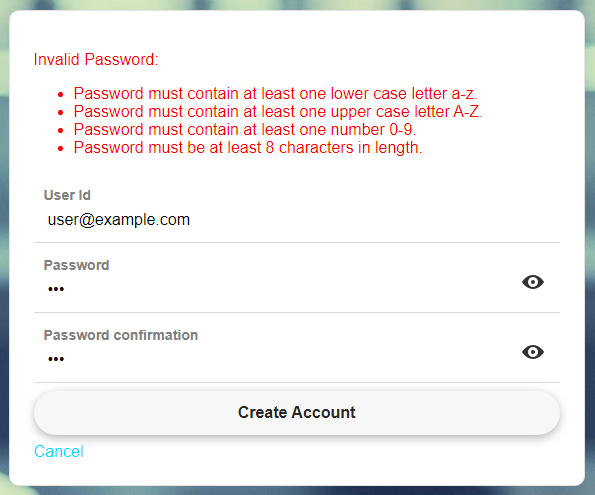
- Password validation function
The name of a JavaScript function to call to validate the password entered by the user. The function takes the password as an argument and should return a string. If the password is valid, the returned string should be blank. If the password is invalid, the function should return an error message to display to the user. The error message should explain why the password is invalid. The message can include HTML markup to format the message.
For Example:
var jsValidPassword = function (pw) {
    var error = [];
    // Validate lowercase letters
    var lowerCaseLetters = /[a-z]/g;
    if(pw.match(lowerCaseLetters) == null) {
        error.push("<li>Password must contain at least one lower case letter a-z.</li>");
    }

    // Validate capital letters
    var upperCaseLetters = /[A-Z]/g;
    if(pw.match(upperCaseLetters) == null) {
        error.push("<li>Password must contain at least one upper case letter A-Z.</li>");
    }

    // Validate numbers
    var numbers = /[0-9]/g;
    if(pw.match(numbers) == null) {
        error.push("<li>Password must contain at least one number 0-9.</li>");
    }

    // Validate length
    if(pw.length < 8) {
        error.push("<li>Password must be at least 8 characters in length.</li>");
    }

    if (error.length > 0) {
        error = "<p>Invalid Password:</p><ul>" + error.join("") + "</ul>";
    } else {
        error = "";
    }

    return error;
};
- Userid validation function
The name of a JavaScript function to call to validate the user id entered by the user. The function takes the user id as an argument and should return a string. If the user id is valid, the function should return a blank string. If the password is invalid, the function should return an error message.
The error message should explain why the user id is invalid. The message can include HTML markup to format the message.
var jsValidUser = function (usr) { if (usr.length < 10) { return "User id must be at least 10 characters in length."; } return ""; }- Resetting password message
A wait message shown while the password reset request is being processed. Defaults to "Resetting Password. Please wait...".
New Account Container (Classic)
- Property
- Description
- Container Id
Defaults to "CONTAINER_NEWACCOUNT".
- Message Id
Defaults to "NEWACCOUNT".
New Account Messages (Classic/JSONForm)
- Initial message
Defaults to "Specify the credentials for your new account, then click the 'Create Account' button.".
- Userid
Defaults to "userid_newaccount".
- Password
Defaults to "password_newaccount".
- Password confirmation
Defaults to "password_confirmation_newaccount".
- Password validation function
The name of a JavaScript function to call to validate the password entered by the user. The function takes the password as an argument and should return a string. If the password is valid, the returned string should be blank. If the password is invalid, the function should return an error message to display to the user.
The error message should explain why the password is invalid. The message can include HTML markup to format the message.
See the Password validation function in the [New Password Container] settings above for an example.
- Missing Userid message
Defaults to "Please specify the User Id".
- Invalid Userid message
Defaults to "UserId is not a valid e-mail address".
- Missing password message
Defaults to "Please specify the password".
- Password confirmation does not match message
Defaults to "Passwords do not match".
- Creating new account message
Defaults to "Creating new account. Please wait...".
- Success message
Defaults to "New account was created.".
- Error message
Defaults to "New account was not created.".
- Get extended user information when creating new account
Defaults to "No". If "Yes" and you have not set an Extended User Information table, you will get a reminder to go to Project Properties and define those settings. Note: The following options become available if "Yes" is selected for this property and you have set an Extended User Information Table.
- Extended user information container Id
Specify the Id of the container where the controls for the extended user information are defined. The controls in this container should use the same names as the fields in the Extended User Information table.
- Extended user information message id
Specify the Id of the element (typically a DIV) where messages related to extended user information are displayed.
- Extended user information container - initial message
The initial message shown in the extended user information container when it is first displayed.
- Extended user information - data was saved message
The message shown after the extended user information has been successfully saved.
Change Password Events (Classic/JSONForm)
Two Xbasic events are available when a user changes their password in the Login UX component. The beforePasswordChange event fires before the password is changed and the afterPasswordChange event fires after the password has been changed.
The typical use case for these events is to store recently used password hashes in a database (using the afterPasswordChange event) so that you can prevent the user from reusing a previously used password (in the beforePasswordChange event).
- Property
- Description
- Before change
(Optional) The name of an Xbasic function to call when the beforePasswordChange event fires, before the user's password is changed. Use this event to implement custom logic such as enforcing password history rules.
- After change
(Optional) The name of an Xbasic function to call when the afterPasswordChange event fires, after the user's password has been changed. Use this event to implement custom logic such as logging the change or storing previously used password hashes.
See Also